Securing Your Secrets: A Deep Dive into Push Notification Privacy
Push notifications, while convenient, can be a significant privacy risk. From potential exposure to cloud providers like **Apple** and **Google**, to forensic recovery of deleted notifications, understanding these vulnerabilities is crucial for security-conscious users.
A phone’s push notifications can contain a significant amount of information about you, your communications, and what you do throughout the day. They’re important enough to government investigations that **Apple** and **Google** now both require a judge’s order to hand details about push notifications over to law enforcement, and even with that requirement Apple shares data on hundreds of users. More recently, we also learned from a **404 Media** report that law enforcement forensic extraction tools can unearth the text from deleted notifications, including those from secure messaging tools, like **Signal**. The good news is that you can mitigate some of this risk.
There are two points where notifications may betray your privacy: when they’re transmitted over cloud servers and once they land on the device. Let’s start with the cloud. It might seem like push notifications come directly from an app, but they are typically routed through either **Apple** or **Google’s** servers first (depending on if you use iOS or Android). According to a letter sent to the Department of Justice by Senator Wyden, the content of those notifications may be visible to **Apple** and **Google**, and at the very least the companies collect some metadata about what apps send a notification and when. App providers have to make the decision to hide the content from **Apple** and **Google** and implement that functionality; **Signal** is one app that does this.
Then, once the notifications land on your phone, depending on your settings, the notification content may be visible on your lock screen without needing to unlock the device. This can be dangerous if you lose your device, someone steals it, or it’s confiscated by law enforcement.
You may clear notifications after looking at them. But it turns out the content notifications get recorded in your device’s internal storage, which then makes them susceptible to recovery with certain types of forensic tools. Notification content may even persist after the app is deleted, if the OS doesn’t fully purge the app’s notification data.
We still have a lot of unanswered questions about how the notification databases work on devices. We do not know how long notifications are stored, or whether they’re backed up to the cloud, in which case the cloud provider could get backdoor access to the content of messages if the backups are enabled and not end-to-end encrypted. This may also make backups vulnerable to law enforcement demands for data.
Which is all to say that there are myriad ways that law enforcement can access the content or metadata of push notifications. Let’s fix that.
## Consider the Strongest Notification Protections for Your Secure Messaging Apps
Secure chat tools are designed to keep the content of the messages safe inside the app. So, for secure chat apps like **WhatsApp** and **Signal**, that means the company that makes those apps cannot see the content of your messages, and they’re only accessible on your and your recipients’ devices. Once messages land on a device, it’s still important to consider some privacy precautions, particularly with notifications.
**Signal**
**Signal** offers three levels of information to include in notifications, all which are pretty self explanatory:
* *Name, Content, and Actions* (*Name and message* on Android) shows the entirety of a message as well as who sent it (on iPhone you can also slide to reply, mark as read, or call back).
* *Name only* only shows the name of the sender.
* *No Name or Content* (*No name or message* on Android) will only show that you have a message from **Signal**, not who sent it or what it’s about.
To change your settings:
* **On iPhone**: Tap your profile picture, then *Settings* > *Notifications* > *Show*.
* **On Android**: Tap your profile picture, then *Notifications* > *Show*.
**WhatsApp**
**WhatsApp** only has one option for this, and it’s currently limited to iPhone, but you can at least tell the app not to include the content of a message in the notification:
* Open **WhatsApp** for iPhone, tap the “You” bar, then *Notifications*, and disable the *Show preview* option.
Check your other apps to see if they offer similar settings.
## Limit Your Notifications Device-Wide
Since **Apple** and **Google** manage push notifications for their respective devices, they also have some visibility into certain data. Push notification data can include certain types of metadata, like which app sent a notification and when, as well as the account ID associated with the phone. In some cases, **Apple** and **Google** may have access to unencrypted content, including the content of the text in a notification or other information from the app itself.
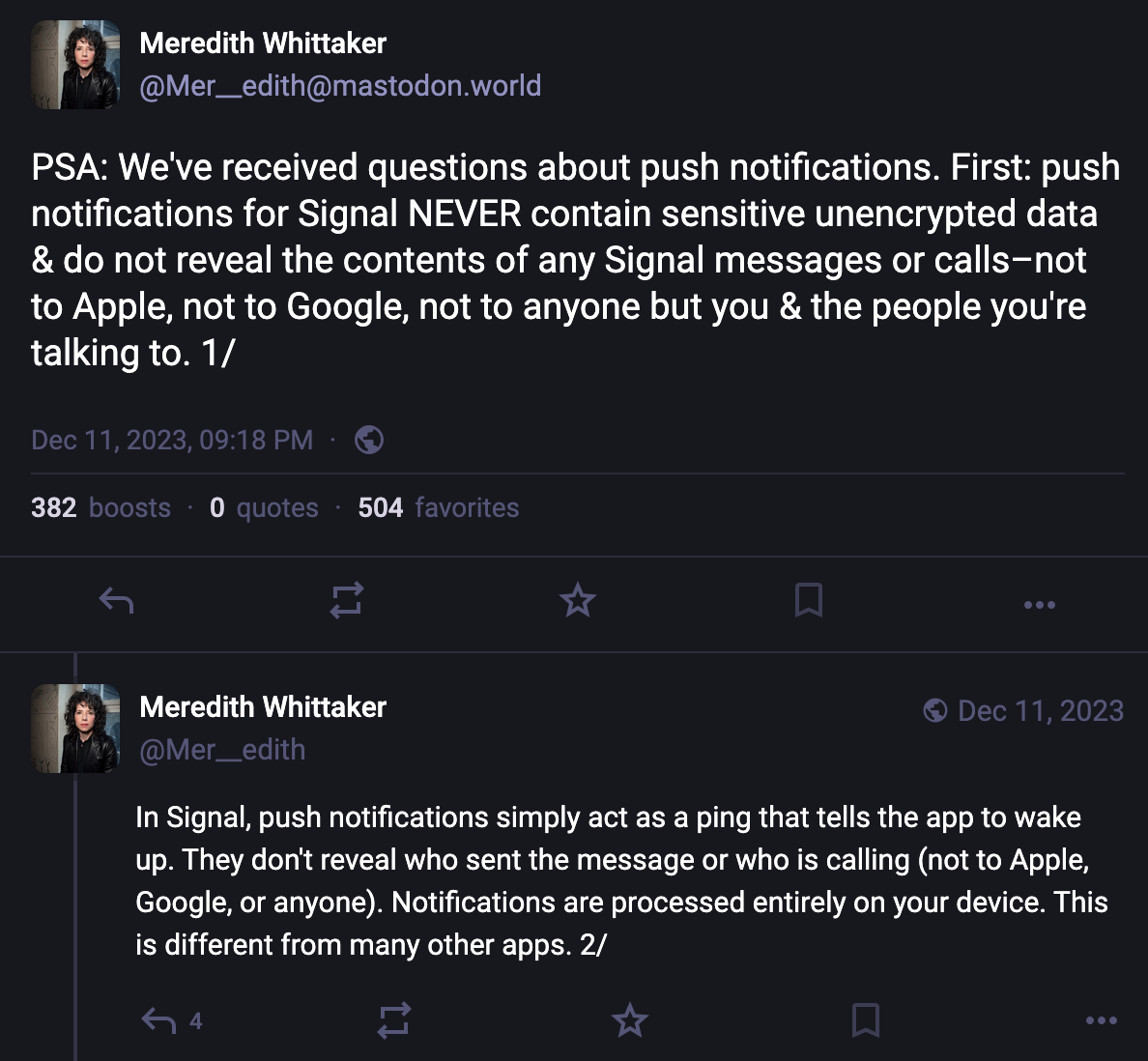
For most app notifications, there’s no simple way to easily figure out what metadata might be gleaned from a notification, or if the notification is unencrypted or not. But some app developers have described details along these lines. For example, **Signal** president Meredith Whittaker explained on social media how the **Signal** app handles notifications entirely on-device.
Searching online for an app name along with “notification privacy,” “notification encryption” or “notification metadata” may help answer your questions, or you may need to dig around in support forums for the app.
It’s also good to reconsider whether any app should be sending you notifications to begin with. Aside from a potential decrease in the number of distractions you endure throughout the day, or the level of chaos on display on your lockscreen, limiting the apps that can send notifications and what content is visible in them can improve your privacy with respect to the sorts of metadata that may be gathered by the companies, as well as any content that may be viewable if someone has physically accessed your device.
**To check and change your settings on iPhone**
* Open *Settings* > *Notifications*.
* On the *Show Previews* option, you can choose whether to show the content of notifications on the lock screen, “Always,” which doesn’t require unlocking the device, “When Unlocked,” which does, and “Never,” which means notifications won’t have any details, just that you have a notification in an app.
* Alternatively, you can scroll down and change these settings per app. Just tap the app name, then the *Show Previews* menu, and choose how you’d like them to appear. Or, if you’ve decided you don’t want notifications from that app at all, uncheck the *Allow Notifications* option.
**To check and change your settings on Android**
The core version of Android relies on app developers to develop specific settings more than controlling them on a platform-wide level.
* Open *Settings* > *Notifications > App notifications* to disable notifications from any app completely. Some apps may also offer internal notification options for specific types of notices, like new messages, that you can configure. For example, you can often prevent notifications from appearing on the lock screen, or customize the type of notifications you receive.